


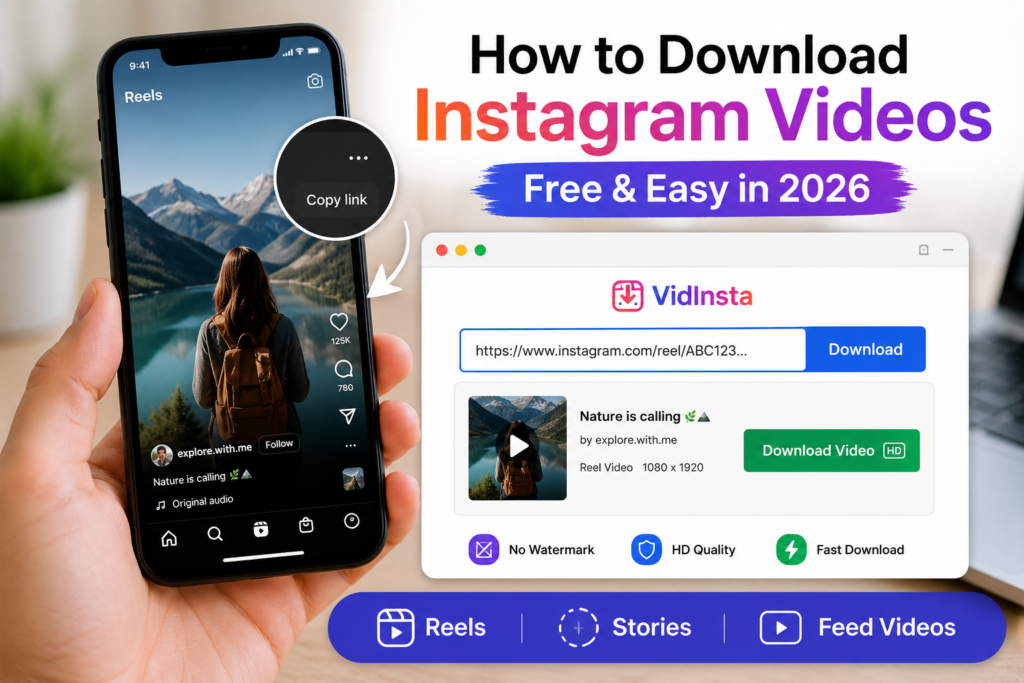
Instagram still doesn’t let users directly download most videos, including Reels and Stories. If you want to save a video to your phone or computer in 2026, there are a few methods that still work reliably and some that no longer do after recent Instagram updates. Here’s the good news: downloading Instagram videos is 100% possible, and you don’t need to be tech-savvy to do it. Whether it’s a Reel, a Story, or a regular feed video, this guide covers the best ways to download Instagram videos in 2026, including Reels, Stories, and feed posts. Let’s skip the fluff and get straight into it.
Why Instagram Doesn’t Let You Download Videos Directly
Before we dive in, here’s the quick context: Instagram intentionally doesn’t offer a native download option for most videos. The closest you get is the in-app Save feature, which only bookmarks the video inside Instagram. You still need Wi-Fi to re-watch it. Not ideal. That’s why third-party tools and browser tricks exist, and honestly, they work even better.
Method 1: How to Download Instagram Videos Using an Online Downloader
If you want to download Instagram videos without installing anything, an online downloader is your best friend. Tools like VidInsta make the process stupid-simple.
Here’s exactly how to do it, step by step:
Step 1: Find the video on Instagram Open the Instagram app on your phone and scroll to the video, Reel, or Story you want to save. Make sure the account is public, otherwise the downloader won’t be able to access it.
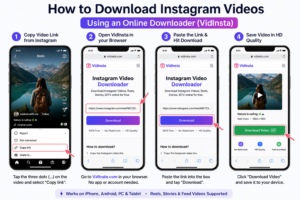
Step 2: Copy the video link On a feed video or Reel, tap the three dots (…) in the top-right corner of the post. A menu will pop up. Select Copy Link and the URL will be saved to your clipboard. On a Story, tap the three dots at the bottom-right corner of the Story screen, then hit Copy Link the same way.
Step 3: Open VidInsta in your browser On the same phone or any device, open your browser (Safari, Chrome, whatever you use) and go to VidInsta. No account creation needed, no app to install. Just open the site and you’re ready to go.
Step 4: Paste the link into the input box You’ll see a text field front and center on the page. Tap it, then paste the link you copied from Instagram. On most phones, you can long-press the field and tap Paste or it will appear automatically as a suggestion above your keyboard.
Step 5: Hit Download and save your video Tap the Download button. VidInsta will process the link in a few seconds and show you the video ready to save. Tap Download Video and the file will land directly in your phone gallery or computer downloads folder in the original HD quality. Most public Instagram videos can be downloaded in their original uploaded quality without adding a watermark.
Once you’ve done it once or twice, the process usually takes less than a minute. The whole process takes under 30 seconds once you’ve done it once.
In testing, the tool worked with standard feed videos, Reels, Stories, and older IGTV links from public accounts.
Method 2: How to Download Instagram Reels to Your Camera Roll
Reels are the most downloaded content on Instagram right now, and for good reason. They’re short, punchy, and endlessly rewatchable.
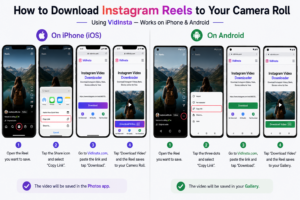
On iPhone:
- Open the Reel you want to save
- Tap the Share icon and select Copy Link
- Head to VidInsta, paste the link, and tap Download
- The video saves straight to your Camera Roll
On Android:
Same steps, and the video will land in your Gallery automatically.
One thing to note: Instagram’s in-app Save Reel option only saves it to your Instagram collection. It does NOT save the file to your gallery. You need a downloader for that.
Method 3: How to Download Instagram Videos on Desktop
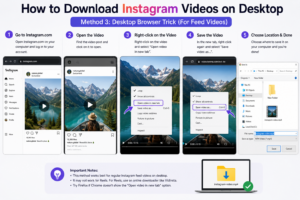
If you’re on desktop, you can sometimes save regular Instagram feed videos directly from the browser without using a third-party tool.
- Go to Instagram.com on your computer and log in
- Find the video post and click on it to open it
- Right-click on the video and select Open video in new tab
- In the new tab, right-click again and select Save video as
- Choose where to save it on your computer and you’re done
This works well for feed videos on desktop. If it doesn’t work in Chrome, try Firefox, it handles this method more reliably.
Note: This trick doesn’t always work for Reels. For Reels, stick with Method 1 using VidInsta for a smoother experience.
Method 4: Screen Recording – The Universal Backup
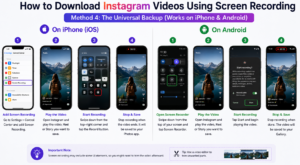
When all else fails, screen recording always works. It’s not the cleanest method (you might capture some UI elements), but it gets the job done.
iPhone:
- Go to Settings – Control Center – Add Screen Recording
- Play the video on Instagram
- Swipe down from the top-right corner and tap the Record button
- Stop recording when done and it saves to your Camera Roll
Android:
- Swipe down from the top of your screen
- Tap Screen Recorder
- Play the video and hit stop when done and it saves to your Gallery
The downside: you’ll need to trim the clip afterward. But as a last resort, it’s totally reliable.
Before You Download – 3 Things to Know
- Storage space matters. HD Instagram videos can be 15–50MB each. Before going on a download spree, check your phone has enough space.
- Only download public content. Downloading videos from private accounts isn’t possible through most tools, and attempting to do so raises serious privacy concerns.
- Respect copyright. Just because you can download a video doesn’t mean you can re-upload it as your own. Always credit the original creator if you share it elsewhere.
Quick Comparison: Which Method Should You Use?
| Method | Best For | Difficulty | Quality |
| VidInsta (Online Tool) | Everything: Reels, Stories, Feed | Super Easy | HD |
| Desktop Browser Trick | Feed videos on PC | Medium | Original |
| Screen Recording | Any video, last resort | Easy | Varies |
FAQ: How to Download Instagram Videos
Can I download Instagram videos for free?
Yes, tools like VidInsta are completely free with no hidden fees.
Do I need to log into Instagram to download videos?
No. Just copy the video’s public link and paste it into the downloader. No login required.
Can I download Instagram Stories before they disappear?
Absolutely. Copy the Story link and use VidInsta to grab it before the 24-hour window closes.
Will the video quality be reduced after downloading?
Not with a good downloader. VidInsta downloads in the original resolution Instagram serves, typically HD or Full HD.
Does this work on iPhone and Android?
Yes, all methods above work on both iOS and Android devices.
Final Thoughts
Knowing how to download Instagram videos can save time when you want offline access to Reels, Stories, or tutorial content. The process takes about 30 seconds once you know what you’re doing. The quickest route? Copy the link, open VidInsta, paste, and download. No sign-up, no drama, no quality drop. Now go save that Reel you’ve been meaning to keep, before you scroll past it again.
