


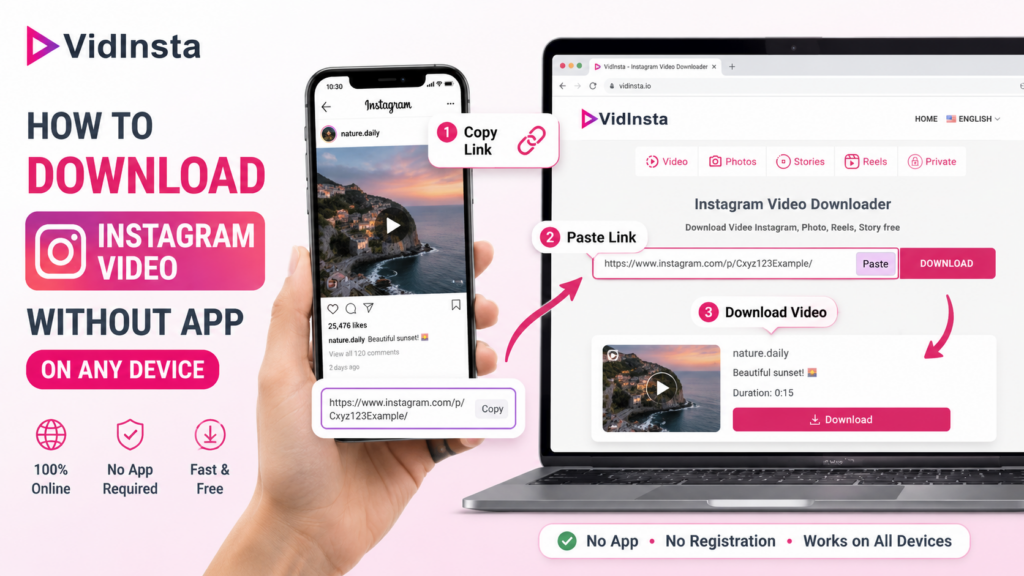
You’re watching a Reel at 1 a.m. It’s the funniest thing you’ve seen all week. You close Instagram. It’s gone. No Wi-Fi later, no way to find it again. Sound familiar? Here’s the thing: you don’t have to install a single extra app on your phone to fix this. Instagram is designed for scrolling, not saving. There’s no official download button, no keep offline option for other people’s content, and honestly, the platform probably likes it that way. But Gen Z and millennials have been outsmarting this limitation for years. No shady software, no weird permissions, no storage hogs required. This guide shows you exactly how to download Instagram video without app on any device: your phone, tablet, or laptop. All methods are free, fast, and require nothing more than a browser.
Why Instagram Doesn’t Let You Save Videos (And Why It Doesn’t Matter)
Instagram restricts video downloads to protect creator content and keep users inside their ecosystem. From a business perspective, it makes sense. Every time you open the app to rewatch something, that’s another session counted, another ad served. But this also means that an entire generation of creators, students, content researchers, and casual scrollers get blocked from something as basic as saving a clip they enjoyed. The good news? The workarounds are simple enough that even your most tech-averse friend could pull it off in under two minutes. Quick note on ethics: Downloading Instagram videos for personal, offline viewing is generally accepted. Reposting someone else’s content as your own is not. Always credit the original creator if you share.
Method 1: Use an Online Downloader in Your Browser (Fastest Way)
This is the go-to method for most people who want to know how to download Instagram video without app. It works on any device with a browser: Android, iPhone, Mac, Windows, doesn’t matter.
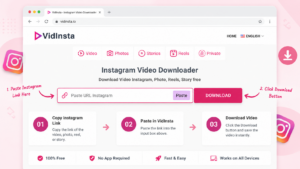
Step-by-step:
- Open Instagram and find the video or Reel you want to save.
- Tap the three-dot menu (⋯) on the post, then select Copy Link.
- Open a new browser tab and go to an online Instagram video downloader (like VidInsta).
- Paste the link into the input field and hit Download.
- Choose your preferred quality (usually HD is available) and save the file to your device.
The whole process takes about 30 seconds. A good downloader like VidInsta supports Reels, IGTV, Stories, carousels, and regular feed videos, all in their original quality without any watermark added.
Pro tip: On iPhone, once the video downloads in Safari, tap and hold, then select Save to Photos. On Android, it goes straight to your Downloads folder.
Method 2: Download on Desktop via Browser (The Page Source Trick)

If you’re on a laptop and prefer to keep things entirely DIY, there’s a built-in browser method that requires zero tools. It’s slightly more manual, but it works reliably for public posts.
- Go to instagram.com in Chrome or Firefox and find the video post.
- Right-click anywhere on the page, then select View Page Source (or press Ctrl+U on Windows, Cmd+U on Mac).
- Press Ctrl+F and search for .mp4
- You’ll see a long URL containing the video file. Copy everything between the quotation marks.
- Paste that URL into a new browser tab. The video will play. Right-click the video and select Save video as.
Heads up: this method works best on desktop Chrome or Firefox. Mobile browsers don’t expose page source easily, so stick to Method 1 on your phone. The best way to how to download Instagram video without app is one that takes under a minute and doesn’t ask you to trust a random link.
Method 3: Screen Record It (Dead Simple, Zero Dependencies)
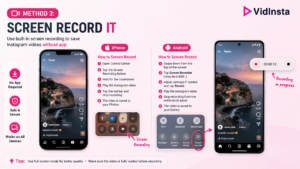
This sounds too obvious, but most people forget their phone has a built-in screen recorder. When you’re in a hurry and just want to save something quickly, this is your fastest option.
On iPhone (iOS 11 and above): Swipe down from the top-right corner to open Control Centre. Tap the Screen Record button (the filled circle icon). Go to Instagram and play the video. Stop recording when done. The clip saves automatically to your Photos app.
On Android: Swipe down for Quick Settings and look for the Screen Recorder tile. Start it, play the Instagram video, then stop. Done. The file appears in your Gallery or Downloads folder.
The quality depends on your screen resolution (usually 1080p on modern phones), so it’s not always as crisp as the original file. But for quick saves, it does the job perfectly.
Method 4: Instagram’s Own Save Feature (For Your Own Content)
This one gets overlooked a lot. If the video is yours, meaning you posted it, Instagram actually lets you download it directly from the app. Go to your post, tap the three-dot menu, and select Download. It saves to your camera roll in its original quality. Some creators also enable downloads on their public posts. If a post has a download option under the share menu, it means they’ve allowed it. Always check there first before going the browser route. It’s the cleanest option when available.
Common Questions About How to Download Instagram Video Without App

Is it safe to use online Instagram video downloaders? Generally yes, as long as you use a reputable one. A reliable tool will never ask for your Instagram password or personal information. If any site asks you to log in, leave immediately. Good tools only need the public video URL to work. Can I download private Instagram videos? Online downloaders only work on public content. Private account videos are not accessible without following the account first, and no browser-based tool can bypass account privacy settings. Does downloading an Instagram video notify the creator? No. Instagram does not send any notification when someone saves or downloads a video using external tools. Only when someone screenshots a Story on certain account types does a notification exist, and video downloads don’t fall under that category. Why is knowing how to download Instagram video without app useful for creators? Content creators often need to repurpose their own videos across platforms like TikTok, YouTube Shorts, and Twitter/X. Sometimes the original file is no longer in their camera roll. Downloading from Instagram directly is a quick way to recover it without digging through old backups.
The Bottom Line
Knowing how to download Instagram video without app is one of those small digital skills that saves you a surprising amount of frustration, especially when you’re offline, switching phones, or just trying to keep a video you genuinely love. The browser method remains the fastest and most reliable way for anyone wondering how to download Instagram video without app across any device. The screen record method is your zero-effort backup for anything else. Either way, there’s no reason to install an extra app on your device. A good web-based tool handles everything in a few taps. Save smarter, not harder.
